
Smartphones have become an important part of everyday life. People use them to communicate with friends, manage personal accounts, browse websites, make payments, store photographs, and access different online services. However, while smartphones provide convenience, they also collect and process large amounts of personal information. Without proper protection, this information may become accessible to applications, websites, or unauthorized individuals.
Understanding Smartphone Privacy Settings is essential for anyone who wants better control over personal information. Whether you use an Android phone or an iPhone, your device includes several privacy features that help you manage application permissions, control location access, protect private files, and reduce unnecessary data collection.
Many smartphone users never explore their privacy settings after purchasing a new device. They install applications, accept permission requests, and continue using different services without checking what information they share. This can create unnecessary privacy risks.
The good news is that improving your smartphone privacy does not require advanced technical knowledge. Most modern devices include built-in settings that allow you to control how applications use your camera, microphone, contacts, photographs, and location information.
In this detailed guide, you will learn everything about Smartphone Privacy Settings, including how they work, why they matter, and how to configure them correctly. We will also explain important Android and iPhone privacy features, common mistakes to avoid, and practical ways to keep your personal information safer.
Whether you are a beginner or an experienced smartphone user, this guide will help you understand your device’s privacy options and make better decisions about your digital security.
What Are Smartphone Privacy Settings?
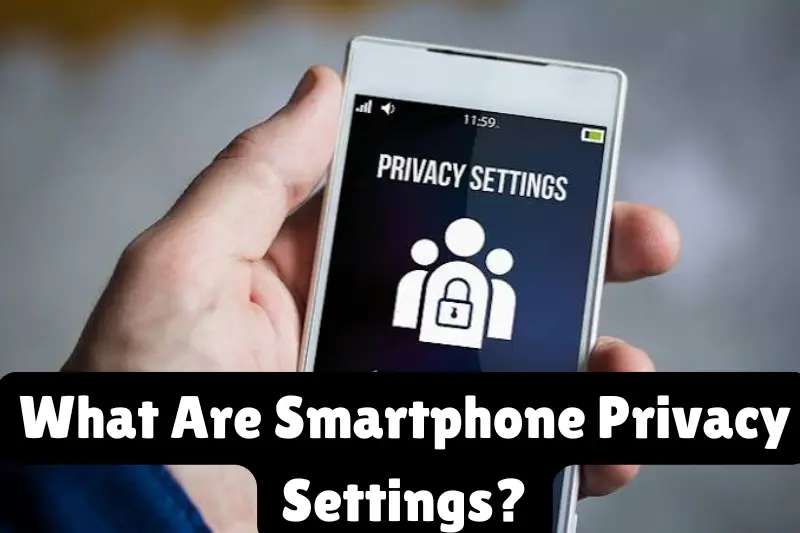
Smartphone Privacy Settings are built-in controls that allow users to manage how their devices collect, store, access, and share personal information.
These settings help you decide which applications can use specific device features and what information they can access.
For example, a messaging application may require microphone permission to record voice messages. A navigation application may need location access to provide directions. However, a simple calculator application generally does not need access to your contacts or photographs.
Privacy settings allow you to approve or deny these requests according to your needs.
Most smartphones provide privacy controls for:
- Camera access.
- Microphone permissions.
- Location services.
- Contacts and calendars.
- Photographs and videos.
- Application tracking.
- Advertising preferences.
- Bluetooth connections.
- Personal files.
- Background application activity.
These features give users greater control over their personal information and help prevent unnecessary data sharing.
Why Are Smartphone Privacy Settings Important?
Smartphones contain valuable personal information, making privacy protection an important part of everyday device management.
Without appropriate settings, applications may receive more access than they actually need. Users may also share information unintentionally through social media, websites, and connected services.
Understanding privacy controls can help reduce these risks.
1. Protect Personal Information
Your smartphone may contain private conversations, photographs, emails, documents, and account details.
Privacy settings help control which applications can access this information and reduce unnecessary exposure.
2. Control Application Permissions
Applications often request access to different smartphone features.
Privacy settings allow you to review these requests and decide whether the access is necessary.
3. Reduce Unnecessary Tracking
Some applications use location information and advertising technologies to understand user activity.
Managing tracking preferences can help limit certain types of unnecessary data collection.
4. Improve Account Security
Smartphone privacy is closely connected to account security.
Protecting your device, managing connected accounts, and using additional authentication can make unauthorized access more difficult.
5. Maintain Control Over Your Digital Activities
Good privacy settings help you decide what information you share and which applications receive access to personal data.
This creates a more controlled and comfortable smartphone experience.
1. Understand the Main Privacy Dashboard
A Privacy Dashboard is one of the most useful features available on supported Android smartphones.
It provides an overview of how applications have accessed sensitive permissions, including location, camera, and microphone.
Instead of checking every application individually, users can review permission activity from one central location.
What Information Does a Privacy Dashboard Show?
Depending on your Android version, the dashboard may display:
- Applications that accessed your location.
- Applications that used your camera.
- Applications that accessed your microphone.
- Permission activity over a selected period.
- Current permission access.
This information helps users identify applications that may have unnecessary access.
How to Open Privacy Dashboard on Android
Follow these steps:
- Open Settings.
- Select Privacy or Security and Privacy.
- Find Privacy Dashboard.
- Open the dashboard.
- Select a permission category.
- Review the applications listed.
- Change permissions where necessary.
The exact location may vary depending on your smartphone manufacturer and software version.
Regularly reviewing this dashboard can help you understand how applications interact with your personal information.
2. Manage Camera Privacy Settings
Camera access is an important privacy permission because it allows applications to capture photographs and videos.
Many applications legitimately require camera access. For example, video calling services need the camera to support video communication, while photography applications require it to take pictures.
However, not every application needs this permission.
How to Control Camera Access on Android
- Open Settings.
- Select Privacy.
- Choose Permission Manager.
- Tap Camera.
- Review applications with access.
- Remove permission from applications that do not need it.
Some Android devices also provide a system-wide camera access control.
How to Control Camera Access on iPhone
- Open Settings.
- Select Privacy & Security.
- Tap Camera.
- Review the available applications.
- Disable access where it is unnecessary.
Why Should You Review Camera Permissions?
An application that does not need photographs or video recording should not automatically receive camera access.
Reviewing these permissions helps reduce unnecessary access to one of your smartphone’s most important features.
Also pay attention to camera-use indicators supported by your operating system. These can help you recognize when an application is using the camera.
3. Manage Microphone Privacy Settings
Your smartphone microphone is used for voice messages, phone calls, video meetings, voice assistants, and audio recording.
Applications may request microphone permission to provide these features.
However, allowing every application to access your microphone is not necessary.
How to Manage Microphone Permissions on Android
- Open Settings.
- Navigate to Privacy.
- Select Permission Manager.
- Choose Microphone.
- Review the applications with access.
- Disable unnecessary permissions.
How to Manage Microphone Permissions on iPhone
- Open Settings.
- Select Privacy & Security.
- Tap Microphone.
- Review the application list.
- Turn off microphone access for applications that do not require it.
Important Microphone Privacy Tips
- Allow microphone access only when necessary.
- Review permissions after installing new applications.
- Pay attention to microphone-use indicators.
- Remove access from applications you no longer use.
- Avoid unfamiliar applications requesting unnecessary audio permissions.
These simple practices help you maintain better control over microphone access.
4. Configure Location Privacy Settings
Location information is among the most sensitive types of smartphone data.
It can reveal where you live, which places you visit, where you work or study, and how you travel.
Many applications request location access to provide useful features. However, continuous location access is not always necessary.
How to Manage Location Settings on Android
- Open Settings.
- Select Location.
- Open App Location Permissions.
- Review applications with location access.
- Select a suitable permission for each application.
Available options may include:
- Allow all the time.
- Allow only while using the app.
- Ask every time.
- Don’t allow.
How to Manage Location Settings on iPhone
- Open Settings.
- Select Privacy & Security.
- Tap Location Services.
- Choose an application.
- Select the appropriate location permission.
- Disable Precise Location if approximate location is sufficient.
What Is Precise Location?
Precise Location allows an application to receive more accurate information about your position.
Approximate Location provides a general area instead of your exact position.
For example, a weather application may only need your general location to display local conditions.
Choosing approximate location when possible can reduce the amount of precise information you share.
5. Control Application Tracking Settings
Application tracking is another important part of smartphone privacy.
Some applications and services use tracking technologies to understand user activity across different applications and websites.
This information may support advertising, analytics, and personalized services.
Manage Tracking on iPhone
Apple provides an App Tracking Transparency feature.
To review the settings:
- Open Settings.
- Select Privacy & Security.
- Tap Tracking.
- Review the available tracking permissions.
- Decide whether applications can request permission to track your activity.
You can also disable tracking requests globally where supported.
Manage Advertising Privacy on Android
Android provides several advertising privacy controls, although their availability and location can vary by software version.
You can review advertising-related options through your device’s Settings and Google services.
Depending on your device, available controls may include advertising topics, measurement, and advertising identifier settings.
Does Turning Off Tracking Stop All Data Collection?
No. Limiting application tracking does not prevent every form of data collection.
Applications may still collect information necessary to provide their services, maintain accounts, or improve functionality.
Therefore, tracking controls should be combined with careful application permission management.
6. Manage Contacts and Calendar Permissions
Your contact list contains personal information about people you communicate with.
It may include names, phone numbers, email addresses, and other saved details.
Calendar applications may also contain private appointments, meetings, and daily schedules.
Giving unnecessary access to these features can expose more information than an application needs.
How to Review Contacts Permissions
On Android:
- Open Settings.
- Select Privacy or Permission Manager.
- Choose Contacts.
- Review applications with access.
- Disable unnecessary permissions.
On iPhone:
- Open Settings.
- Select Privacy & Security.
- Tap Contacts.
- Review application access.
- Adjust permissions according to your needs.
Why Should You Limit Contact Access?
Some applications can work without accessing your complete contact list.
Where supported, consider sharing only selected contacts instead of your entire address book.
You should also review calendar permissions and prevent unnecessary access to personal events.
7. Protect Photos and Videos Through Privacy Settings
Photographs and videos often contain personal information that users may not want to share with every application.
For example, your gallery may contain personal memories, screenshots, identification documents, receipts, and private photographs.
Modern smartphones provide options to control how applications access these files.
Manage Photo Permissions on Android
Depending on your Android version, you may be able to grant access to selected photographs rather than your entire gallery.
Review application permissions and choose the most limited available access that still allows the application to work properly.
Manage Photo Permissions on iPhone
iPhone provides photo access controls through its Privacy & Security settings.
You can review which applications have access to your photo library and adjust their permissions.
Where supported, you can choose selected photographs instead of allowing complete library access.
Use Private Storage Features
Some Android devices provide Secure Folder or Private Space features.
iPhone users can use supported hidden and locked photo features.
These options provide additional privacy for selected personal files.
Remember that hiding photographs does not automatically protect every backup or shared copy. Review cloud storage settings as well.
8. Enable Strong Screen Lock Settings
Your smartphone’s screen lock is one of the most important security features.
It helps prevent unauthorized individuals from opening your device and viewing private information.
A weak screen lock can make it easier for someone to access your applications, messages, and files.
Recommended Screen Lock Options
Consider using:
- A strong PIN.
- A complex password.
- Face ID on supported iPhones.
- Fingerprint authentication on supported devices.
Avoid simple combinations such as repeated numbers, birthdays, and easily guessed patterns.
Review Automatic Lock Settings
Your phone should lock automatically after a reasonable period of inactivity.
This helps protect your information when you temporarily leave your device unattended.
Also consider hiding sensitive notification previews on your lock screen.
9. Manage Notification Privacy Settings
Notifications can display private information even when your smartphone is locked.
For example, a message preview may reveal personal conversations, while an email notification may display sensitive information.
Controlling notification previews helps reduce this exposure.
Android Notification Privacy
- Open Settings.
- Select Notifications.
- Find Lock Screen Notifications.
- Choose the option to hide sensitive content or notifications.
- Save your preferences.
iPhone Notification Privacy
- Open Settings.
- Select Notifications.
- Tap Show Previews.
- Choose When Unlocked or Never.
You can also manage notifications individually for different applications.
These settings are particularly useful when you use your smartphone in public places.
10. Review Application Data and Permission Usage
Many smartphones provide information about application activity.
This may include battery usage, mobile data consumption, background activity, and permission history.
Reviewing these details can help you understand how applications behave.
What Should You Look For?
Pay attention to:
- Applications consuming unusually high mobile data.
- Applications using excessive battery power.
- Unfamiliar applications.
- Unexpected permission requests.
- Applications accessing sensitive features without an obvious reason.
Unusual activity does not automatically mean that an application is unsafe.
However, it is a good reason to investigate the application and review its permissions.
11. Configure Privacy Settings for Background Applications
Some applications continue performing certain activities when you are not actively using them.
For example, messaging applications may need background activity to receive notifications.
Other applications may perform unnecessary background tasks.
How to Review Background Activity
On Android, open Settings and review the Battery or Apps sections.
Depending on your device, you may be able to restrict background activity for selected applications.
On iPhone, open Settings and select General, followed by Background App Refresh.
You can disable background refresh for applications that do not need it.
Remember that restricting background activity may affect notifications, synchronization, and other application features.
Choose settings according to your actual needs.
12. Control Bluetooth and Nearby Device Permissions
Bluetooth allows smartphones to connect with wireless headphones, speakers, watches, and other devices.
Applications may also request nearby-device permissions to communicate with compatible equipment.
Although these features are useful, it is important to manage them carefully.
Recommended Bluetooth Privacy Practices
- Review paired devices regularly.
- Remove unfamiliar connections.
- Reject unexpected pairing requests.
- Turn off Bluetooth when it is not needed.
- Review nearby-device permissions.
- Keep your smartphone software updated.
You do not need to disable Bluetooth permanently. Simply use it responsibly and avoid connecting to unfamiliar devices.
13. Review Browser Privacy Settings
Your smartphone browser stores information about websites you visit and preferences you select.
Depending on your settings, it may also store cookies, browsing history, saved passwords, and website permissions.
Reviewing browser privacy controls can help reduce unnecessary data storage.
Important Browser Privacy Options
Browsing History: Allows you to review and delete previously visited websites.
Cookies: Help websites remember information, but some cookies are also used for tracking.
Website Permissions: Control whether websites can access features such as location, camera, and microphone.
Safe Browsing: Helps identify potentially dangerous websites.
Private Browsing: Reduces certain locally stored browsing information.
Remember that private browsing does not make you completely anonymous online.
Websites and network providers may still receive information about your connection.
14. Use Built-In Security Features
Modern smartphones include several security tools that work alongside privacy settings.
Understanding these features helps you protect your device without installing unnecessary applications.
Google Play Protect
Google Play Protect checks applications for potentially harmful behavior and provides security warnings when appropriate.
Keep it enabled and pay attention to any warnings.
Apple Security Features
iPhone includes built-in protections that help secure personal information, applications, and device access.
Features include application permission controls, device passcodes, and supported account security options.
Find Hub and Find My
Android Find Hub and Apple Find My provide device recovery features.
Depending on the device and configuration, they can help locate a missing smartphone and protect its information.
These tools are useful parts of a broader smartphone security strategy.
15. Configure Cloud Backup Privacy Settings
Cloud backups help users recover important information if their smartphone becomes damaged, lost, or replaced.
However, backups may contain sensitive photographs, documents, contacts, and application information.
It is therefore important to review your cloud privacy settings.
Important Backup Privacy Practices
- Protect your cloud account with a strong password.
- Enable two-factor authentication.
- Review which information is included in backups.
- Check connected devices.
- Understand the available encryption features.
- Remove unnecessary old backups.
- Keep recovery information updated.
Some cloud services provide additional encryption options for supported data.
For example, eligible Apple users can enable Advanced Data Protection for additional end-to-end encrypted iCloud data categories.
Always understand the account recovery requirements before changing advanced encryption settings.
16. Manage Social Media Privacy Settings
Social media applications collect and process different types of information.
Your account may contain photographs, messages, personal details, location information, and interaction history.
Reviewing social media privacy settings helps you control what other people can see.
Important Social Media Settings
- Profile visibility.
- Post audience.
- Message requests.
- Tagging permissions.
- Location sharing.
- Contact synchronization.
- Account login notifications.
- Connected applications.
Avoid publicly sharing information that reveals sensitive personal details.
You should also review old posts and remove information that you no longer want publicly available.
17. Protect Your Smartphone From Suspicious Applications
Not every application available online deserves your trust.
Some applications may request unnecessary permissions or contain unwanted software.
Installing applications without checking their developers and privacy information can create unnecessary risks.
Before Installing an Application
Review the following:
- Developer information.
- Application ratings.
- User feedback.
- Privacy disclosures.
- Requested permissions.
- Recent update history.
- Main application purpose.
Download applications from trusted sources and avoid unfamiliar installation files.
If an application requests access that does not match its purpose, consider whether you really need it.
18. Review Connected Devices and Account Access
Your Google, Apple, email, and social media accounts may be connected to multiple devices.
These services often provide account security pages where you can review signed-in devices and recent activity.
Why Is This Important?
If you no longer use an old smartphone or tablet, it may still remain connected to an account.
Reviewing connected devices helps you identify unfamiliar sessions and manage access.
What Should You Do?
- Check signed-in devices.
- Review recent login activity.
- Remove devices you no longer use.
- Change passwords if unauthorized access is suspected.
- Enable additional authentication.
- Keep account recovery information current.
Do not assume that every unfamiliar device represents unauthorized access. Check whether it belongs to an older device or an existing session before taking action.
19. Enable Two-Factor Authentication
Two-factor authentication adds another verification step when someone attempts to access your account.
It helps protect important accounts even if a password becomes exposed.
Accounts That Need Additional Protection
Prioritize:
- Primary email accounts.
- Cloud storage accounts.
- Social media profiles.
- Financial service accounts.
- Shopping accounts.
- Accounts containing important personal documents.
Where supported, consider using an authenticator application or security key.
Never share verification codes with people who contact you unexpectedly.
20. Keep Your Smartphone Software Updated
Software updates help improve smartphone security and privacy.
Manufacturers regularly release updates to fix vulnerabilities, improve performance, and introduce additional features.
Using an outdated operating system may leave your device exposed to known security problems.
How to Check for Updates on Android
- Open Settings.
- Select System or Software Update.
- Tap Check for Updates.
- Install available updates.
How to Check for Updates on iPhone
- Open Settings.
- Select General.
- Tap Software Update.
- Check for available updates.
- Follow the installation instructions.
Enable automatic updates where available and supported.
21. Use a Password Manager
A password manager helps users create and store unique passwords for different accounts.
Reusing the same password across multiple applications and websites creates unnecessary security risks.
If one service experiences a data breach, reused passwords may put other accounts at risk.
A password manager can help by:
- Generating strong passwords.
- Storing passwords in an encrypted vault.
- Reducing password reuse.
- Making account management easier.
- Identifying weak or reused passwords when supported.
Protect your password manager with a strong master password and additional authentication.
22. Understand Private Browsing and VPN Settings
Private browsing and VPN services are two different privacy tools.
Private browsing helps reduce the amount of browsing information saved locally on your device.
A VPN creates an encrypted connection between your device and the VPN provider.
Both tools can provide useful privacy benefits, but neither guarantees complete anonymity.
When Is Private Browsing Useful?
It can be helpful when you do not want certain browsing history and session information saved in the browser’s normal history.
When Is a VPN Useful?
A reputable VPN can provide additional protection when connecting through untrusted networks.
However, your VPN provider may still process connection information, so choose a trustworthy service and review its privacy policy.
23. Configure Privacy Settings When Sharing Your Phone
Sometimes you may need to lend your smartphone to another person.
Without proper precautions, this could expose private messages, photographs, documents, and applications.
Protect Your Information Before Sharing
- Close private applications.
- Hide sensitive notifications.
- Use supported application-locking features.
- Avoid sharing account passwords.
- Use separate user profiles where available.
- Keep important files protected.
Android devices may offer guest profiles or multiple-user features.
iPhone provides Guided Access, which can restrict use to a selected application during a temporary sharing session.
24. Review Privacy Settings After Installing New Applications
Every time you install an application, it may request access to different smartphone features.
Do not automatically accept every request.
Instead, consider whether the requested permission is necessary for the application’s main purpose.
For example, a navigation application may need location access, while a basic calculator generally does not need microphone access.
Make it a habit to review permissions immediately after installing unfamiliar applications.
This simple practice helps prevent unnecessary information sharing.
25. Create a Monthly Smartphone Privacy Routine
Privacy management should not be treated as a one-time activity.
Applications receive updates, operating systems introduce new features, and users install additional services over time.
A monthly privacy review can help you maintain better control over your smartphone.
Weekly Privacy Checks
- Review new application installations.
- Check unexpected account notifications.
- Look for unusual application activity.
- Install important security updates.
Monthly Privacy Checks
- Review location permissions.
- Check camera and microphone access.
- Review social media privacy settings.
- Check connected devices.
- Review cloud backup settings.
- Remove applications you no longer use.
After Major Software Updates
Explore newly available privacy controls and check whether application permissions have changed.
A consistent routine makes smartphone privacy easier to maintain.
Android vs. iPhone Privacy Settings: Key Differences
Android and iPhone provide several privacy controls, but their settings and features are organized differently.
Understanding these differences can help users manage their devices more effectively.
| Privacy Feature | Android | iPhone |
|---|---|---|
| Application permissions | Available | Available |
| Location management | Available | Available |
| Camera permissions | Available | Available |
| Microphone permissions | Available | Available |
| Privacy dashboard | Supported versions | App Privacy Report |
| Application tracking controls | Options vary | App Tracking Transparency |
| Device recovery | Find Hub | Find My |
| Screen lock | PIN, password, biometrics | Passcode, Face ID, Touch ID |
| Photo access controls | Available | Available |
| Background activity controls | Available | Available |
Android Privacy Settings
Android provides flexible permission management and different privacy features depending on the manufacturer and software version.
Users can review application access, manage location permissions, control background activity, and use supported private storage features.
iPhone Privacy Settings
iPhone provides centralized privacy controls through its Privacy & Security section.
Users can manage application tracking, location access, photo permissions, camera access, and microphone permissions.
Which Smartphone Provides Better Privacy?
There is no single answer for every user.
Both platforms provide useful privacy features. Your security depends on how carefully you manage permissions, protect accounts, install applications, and maintain software updates.
The most effective approach is to understand your device and use its available privacy features consistently.
Common Smartphone Privacy Settings Mistakes to Avoid
Even users who understand digital privacy sometimes make mistakes that expose unnecessary personal information.
Avoiding these habits can improve your overall smartphone security.
1. Allowing Every Application Permission
Applications should not automatically receive access to every smartphone feature.
Review permission requests and allow only what is necessary.
2. Ignoring Location Settings
Some applications may request more location access than their main features require.
Review background location permissions regularly.
3. Using Weak Passwords
Simple passwords and reused combinations can make account protection weaker.
Use strong and unique passwords for important services.
4. Ignoring Software Updates
Older software may contain security vulnerabilities.
Install supported security updates regularly.
5. Sharing Sensitive Information Publicly
Avoid publishing personal contact details, private documents, or location information unnecessarily.
6. Installing Unknown Applications
Unfamiliar applications may contain unwanted software or request excessive permissions.
Check the developer and application details before installation.
7. Assuming Private Browsing Provides Complete Privacy
Private browsing mainly controls locally stored browsing information. It does not hide all online activity.
Understand what each privacy feature actually does.
Smartphone Privacy Settings Checklist for Beginners
If you are new to smartphone privacy, start with these important settings.
- Enable a strong screen lock.
- Review camera permissions.
- Review microphone permissions.
- Manage location access.
- Disable unnecessary application tracking.
- Hide sensitive lock screen notifications.
- Remove unused applications.
- Enable automatic software updates.
- Protect important accounts with two-factor authentication.
- Review photo and file permissions.
- Check connected devices.
- Secure cloud backups.
- Use trusted application stores.
- Review social media privacy.
- Check privacy settings every month.
Following this checklist can help you create a safer smartphone environment without installing additional applications.
Frequently Asked Questions About Smartphone Privacy Settings
1. What are Smartphone Privacy Settings?
Smartphone Privacy Settings are controls that allow users to manage how applications and services access personal information. They include options for location, camera, microphone, contacts, photographs, tracking, and other sensitive information.
2. Where Can I Find Privacy Settings on My Phone?
On Android, open Settings and look for Privacy or Security and Privacy. On iPhone, open Settings and select Privacy & Security.
The exact menu names may vary depending on your smartphone model and software version.
3. Which Smartphone Privacy Settings Should I Change First?
Start by reviewing camera, microphone, and location permissions. Then secure your screen lock, hide sensitive notification previews, and review application tracking settings.
These changes provide a useful foundation for better privacy.
4. How Do I Stop Applications From Accessing My Location?
Open your smartphone’s location permissions and review installed applications. Disable access for applications that do not need location information.
For applications that require location services, consider allowing access only while using the application.
5. How Can I Check Which Applications Use My Camera?
Android users can review camera activity through supported Privacy Dashboard features. iPhone users can review camera permissions under Settings and Privacy & Security.
Both platforms provide indicators when the camera is in use on supported versions.
6. Are Smartphone Privacy Settings Enough to Protect My Information?
Privacy settings provide important protection, but they are not enough by themselves.
You should also use strong passwords, enable two-factor authentication, install software updates, download trusted applications, and avoid suspicious messages.
7. Should I Disable All Application Permissions?
No. Some applications need specific permissions to function correctly.
For example, a navigation application requires location access to provide directions.
Instead of disabling everything, review each permission and allow only the access necessary for the application’s features.
8. What Is the Difference Between Privacy and Security Settings?
Privacy settings control how personal information is accessed, collected, and shared.
Security settings focus on protecting devices and accounts against unauthorized access and other threats.
Both are important for maintaining a safer smartphone experience.
9. Can I Protect My Smartphone Privacy Without Installing Applications?
Yes. Android and iPhone include built-in privacy controls that allow you to manage permissions, tracking, location access, notification previews, and other settings.
You can improve many aspects of smartphone privacy without downloading additional applications.
10. How Often Should I Review Smartphone Privacy Settings?
A monthly review is a useful habit. You should also review permissions whenever you install a new application or notice unexpected activity.
Check your settings after major software updates as well.
11. Does Turning Off Location Services Stop All Tracking?
No. Disabling location services limits access to your device’s location through those services, but it does not prevent every form of online tracking.
Websites and applications may still collect other information through their services and network connections.
12. Can Applications Access My Photos Without Permission?
Modern smartphone operating systems provide photo access controls. However, the exact behavior depends on your device, operating system, and the permissions you grant.
Review photo access regularly and use selected-photo permissions where available.
13. Are Android Privacy Settings Different From iPhone Privacy Settings?
Yes. Both platforms provide similar categories of privacy controls, but their menus, features, and available options differ.
Android uses settings such as Permission Manager and Privacy Dashboard on supported devices. iPhone provides centralized controls through Privacy & Security.
14. Why Should I Hide Notifications on My Lock Screen?
Notification previews can display private messages, verification codes, and personal information while your phone is locked.
Hiding sensitive content reduces the possibility of other people viewing these details.
15. Can Privacy Settings Improve Smartphone Security?
Yes. Privacy settings help reduce unnecessary application access and information sharing.
When combined with strong authentication, regular updates, and careful application choices, they contribute to a more secure smartphone experience.
Conclusion
Understanding and configuring Smartphone Privacy Settings is essential for anyone who wants to protect personal information while using modern technology. Smartphones store photographs, private messages, account details, contacts, documents, and location information, making privacy management an important everyday responsibility.
Fortunately, Android and iPhone provide several built-in features that make privacy management easier. By reviewing application permissions, controlling location access, managing camera and microphone settings, securing notifications, and limiting unnecessary tracking, you can maintain greater control over your personal information.
Remember that privacy protection is not a one-time activity. Applications change, software receives updates, and new services introduce additional permission requests. Reviewing your settings regularly helps you understand how your information is being used.
Start with the basic recommendations in this guide and gradually improve your privacy habits. With the right settings and responsible smartphone usage, you can enjoy modern mobile technology while keeping your personal information better protected.